
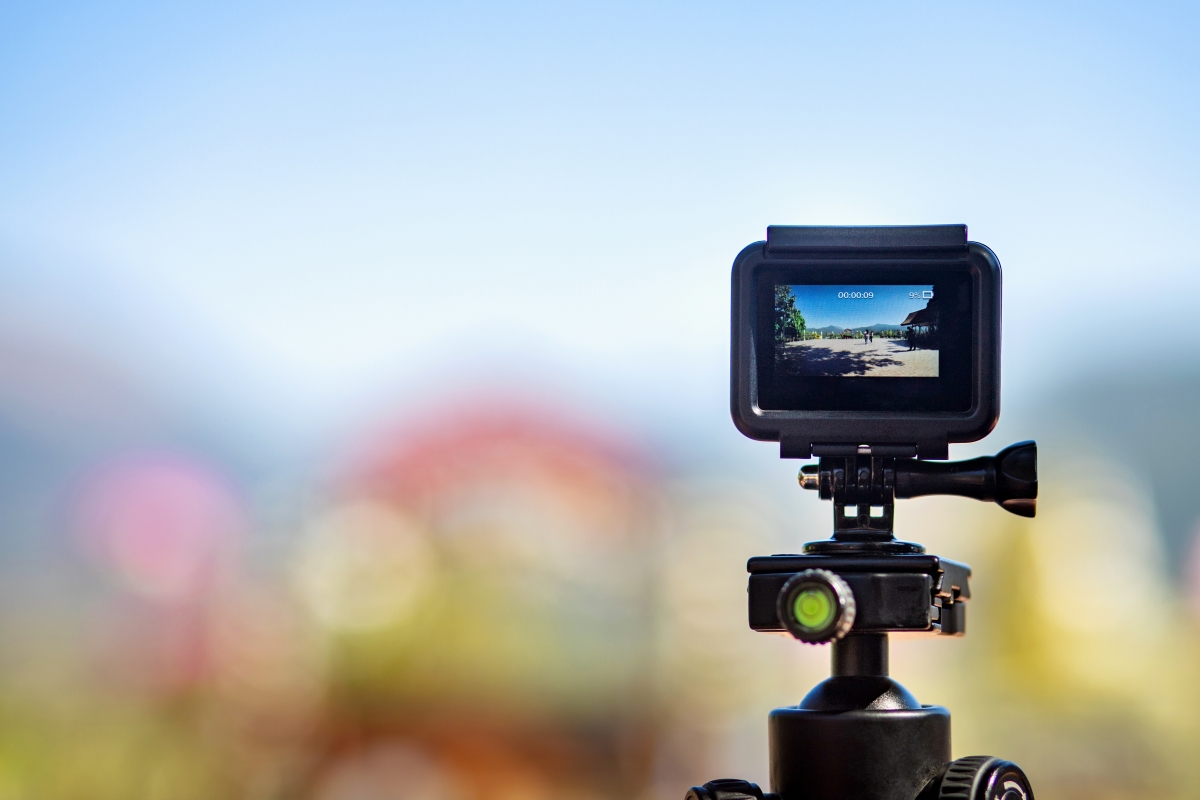
Capturing life’s adventures with a GoPro camera is thrilling. But, managing the footage can be tough. It’s key to convert videos into formats you can edit, share, and store.
Finding a good video converter is vital for smooth playback and efficient editing. With so many choices, picking the right one can feel daunting.
This article will show you the top video converters for your GoPro footage. We’ll cover their main features and benefits. Whether you’re a pro filmmaker or a passionate adventurer, we’ll guide you to the best tool for your videos.
Key Takeaways
- Top video converters for GoPro footage
- Key features to look for in a video converter
- Benefits of using a reliable video converter
- Comparison of popular video converters
- Tips for choosing the best video converter for your needs
Why You Need a GoPro Video Converter
GoPro cameras are super popular for making cool, action-packed videos. But, their special formats can sometimes cause problems. As someone who loves action cameras, you know how hard it can be to work with GoPro footage.
“The best camera is the one you have with you,” David Meerman Scott said. But, having the right tools to edit and share your videos is just as important.
Understanding GoPro Video Formats
GoPro cameras usually record in MP4 format, using the H.264 codec. But, some newer models also use HEVC (H.265) for better compression. Knowing these formats is key because they impact how you can use your videos.
For example, HEVC videos are better quality and smaller in size. But, they might not work with all media players or editing software.
Benefits of Converting GoPro Videos
Converting your GoPro videos can make them much more useful. By changing them to formats that more people can use, you make sure they work with your favorite editing tools or devices. This process also helps make your videos better for different uses, like sharing online or for professional editing.
“The goal is to turn data into information, and information into insight.” –
Converting your videos is a way to take more control and flexibility over your content.
Key Features to Look for in GoPro Video Converters
When converting GoPro videos, it’s important to know what to look for. A good converter should handle many formats, convert files fast, and keep the video quality the same.
Format Compatibility
Format compatibility is key. GoPro cameras use special formats like MP4 or HEVC (H.265). A good converter should support many formats. This way, your videos can play on different devices or be edited in various software. Look for a converter that can handle both common and proprietary formats, making it easier to share and edit your videos.
Speed and Performance
How fast a converter works is also important. Fast conversion speeds save time, especially with big files or many conversions at once. A good GoPro video converter uses multi-core processors and GPU acceleration. This makes conversions quicker without losing quality.
Quality Preservation
Keeping the video quality high is crucial. A reliable converter should keep the high quality of your GoPro footage. It should maintain crisp and clear videos. Features like lossless conversion and keeping metadata are key to preserving your videos’ integrity.
How GoPro Footage Differs from Standard Video
It’s important to know the differences between GoPro footage and regular video for the best conversion. GoPro cameras are made for capturing adventures in tough conditions. This leads to unique video features.
High Frame Rate and Resolution Considerations
GoPro cameras can record at high speeds and resolutions. This makes them great for fast activities. For example, a high frame rate lets you see slow-motion videos smoothly. This is handy for sports analysis or dramatic scenes.
When you convert GoPro videos, keeping these high qualities is key. This ensures the video looks as good as it did when recorded.
- High frame rates (up to 240fps) for smooth slow-motion
- High resolutions (up to 5K) for detailed video
- Considerations for maintaining quality during conversion
HEVC/H.265 Encoding Challenges
Many GoPro cameras use the HEVC (H.265) codec for better compression. But, this can be a problem for converters, as not all support it. It’s vital to pick a converter that handles HEVC to avoid issues.
Key considerations include:
- Checking converter compatibility with HEVC/H.265
- Understanding the impact of encoding on video quality
- Ensuring the chosen converter can handle the specific GoPro video format
Top GoPro Video Converters for 2023
We searched for the best GoPro video converter in 2023. We looked at many options to find the top ones. They needed to perform well, be easy to use, and work with many devices.
We checked several important things. We looked at how well they worked with different GoPro models. We also tested how fast they were and how well they kept the video quality.
Our Testing Methodology
We made a detailed plan to compare these converters. We converted videos from different GoPro models and checked the results. We looked at how well the videos were converted, how big the files were, and how long it took.
We also read what other users said. This helped us see how these converters work in real life. Then, we put all the information together to show what each converter is good at and what it’s not.
| Converter | Format Compatibility | Conversion Speed | Quality Preservation |
|---|---|---|---|
| Wondershare UniConverter | High | Fast | Excellent |
| HandBrake | Medium | Moderate | Good |
| Adobe Premiere Pro | High | Slow | Excellent |
Our tests showed that the best GoPro video converters for 2023 are balanced. They work well with many formats, convert videos fast, and keep the quality high. When picking a converter, think about what you need. Consider the GoPro comparison you’re doing or the devices you’re converting for.
Wondershare UniConverter
Wondershare UniConverter is a top choice for converting and editing GoPro videos. It offers many innovative features.
Overview
Wondershare UniConverter helps turn GoPro videos into different formats. This makes it easy to share or edit them. It supports over 1,000 video formats, making it very versatile.
Pros
- High Conversion Speed: UniConverter converts videos quickly, saving time.
- Quality Preservation: It keeps the original video quality during conversion.
- User-Friendly Interface: The software is simple to use, even for those not tech-savvy.
Cons
- Resource Intensive: The software can use a lot of system resources.
- Cost: While there’s a free trial, the full version needs to be bought.
Features
UniConverter has many features like video editing tools and a DVD creator. It also lets you download online videos. Its VR conversion and 4K video processing are great for GoPro users.
With its wide range of tools and features, Wondershare UniConverter is a great tool for working with GoPro footage.
HandBrake
HandBrake is a free and open-source tool for converting GoPro videos. It’s known for its versatility and ability to handle many video formats. This makes it a great choice for converting GoPro footage.
Overview
HandBrake is an open-source video transcoder available for Windows, Mac, and Linux. It supports a wide range of video formats. It’s especially good at converting videos for use on different devices.
Pros
The advantages of using HandBrake include its free availability and open-source nature. This lets users customize it as needed. It also supports many formats and works on multiple operating systems.
Cons
Despite its benefits, HandBrake has some drawbacks. Its user interface can be intimidating for beginners. It also requires some technical knowledge to use well. Plus, it lacks some advanced features found in paid software.
Features
HandBrake has several key features that make it popular. These include:
- Support for a wide range of video formats
- Batch processing capabilities
- Customizable output settings
- Compatibility with multiple operating systems
These features offer a lot of flexibility and control when converting GoPro videos.
Adobe Premiere Pro
Adobe Premiere Pro is a top pick for professional video editing and GoPro video conversion. It has a wide range of tools for both professionals and serious hobbyists.
Overview
Adobe Premiere Pro is part of the Adobe Creative Cloud suite. It works well with other Adobe apps. It’s famous for its advanced video editing features like multi-camera editing, color grading, and audio ducking.
Pros
The software has advanced editing tools and supports many video formats. This makes it easy to work with GoPro footage. It also connects well with other Adobe tools like After Effects.
Cons
One big drawback is its steep learning curve. It can be hard for beginners. Also, you need a subscription to Adobe Creative Cloud, which might not suit everyone.
Features
- Multi-camera editing support
- Advanced color grading tools
- Dynamic linking with After Effects
- Support for various video formats, including those from GoPro
| Feature | Description | Benefit |
|---|---|---|
| Multi-camera editing | Edit footage from multiple cameras simultaneously | Enhances the editing process for complex projects |
| Color grading | Advanced tools for color correction and grading | Improves the visual aesthetic of the video |
| Dynamic linking | Seamless integration with After Effects | Streamlines the workflow between editing and visual effects |
VideoProc Converter
VideoProc Converter is a top pick for converting GoPro videos. It supports many formats, making it perfect for sharing or editing your GoPro clips.
Overview
VideoProc Converter is a powerful tool for converting videos. It works with many formats, including GoPro. Its easy-to-use interface is great for all users, from beginners to experts.
Pros
This software is known for its fast conversion speeds and high-quality output. It handles 4K and HDR videos well, keeping them clear and detailed.
Cons
VideoProc Converter has a lot of features, which might be too much for some. Its interface is easy to use but could be simpler.
Features
VideoProc Converter can convert GoPro videos to many formats. It also lets you edit videos and process multiple videos at once. You can tweak settings like resolution and frame rate.
| Feature | Description | Benefit |
|---|---|---|
| Format Conversion | Converts GoPro videos to various formats | Enhances compatibility with different devices and platforms |
| Basic Video Editing | Allows for trimming, cropping, and adjusting video settings | Provides flexibility in preparing videos for different uses |
| Batch Processing | Enables the conversion of multiple videos simultaneously | Saves time for users with large collections of GoPro footage |
Movavi Video Converter
Movavi Video Converter is a versatile tool for handling many video formats, including GoPro. It converts videos fast and efficiently. This makes it great for both hobbyists and professionals.
Overview
The software has an easy-to-use interface. It lets users pick their output format, tweak settings, and start converting with a few clicks.
Pros
- Easy to Use: Its simple interface is perfect for all skill levels.
- Fast Conversion: It converts videos quickly without losing quality.
- Format Support: It supports many formats, making it great for GoPro videos.
Cons
- Limited Advanced Features: It’s good for basic conversions but lacks some advanced features.
- Cost: It’s not free, which might be a drawback for some.
Features
Movavi Video Converter offers many useful features. It allows editing videos during conversion and supports batch conversions. A tech review noted, “Its simplicity and powerful features make it a standout in video conversion software.”
“Movavi Video Converter is a great tool for anyone looking to convert their videos quickly and efficiently. Its ease of use and robust feature set make it a top choice.”
Free vs. Paid GoPro Video Converters: What’s the Difference?
Choosing between free and paid GoPro video converters can be tough. It depends on what you need, how complex the task is, and your budget.
Free GoPro video converters are great for simple tasks. They have basic features and are free, making them perfect for casual users.
When to Choose Free Options
Free GoPro video converters are good for:
- Users with simple conversion needs, like changing video formats for a specific device.
- Those on a tight budget or who don’t want to spend on video conversion software.
- People okay with some limitations, like watermarks or limited support.
HandBrake is a popular free converter known for its versatility and features.
When to Invest in Paid Software
Paid GoPro video converters have more advanced features and better performance. They’re worth it for:
- Professional videographers needing top-quality output and advanced editing.
- Users converting many videos fast and efficiently.
- Those who want premium support and regular updates.
Wondershare UniConverter and Adobe Premiere Pro are examples of paid converters. They offer advanced features and high-quality output.
In summary, the choice between free and paid converters depends on your needs and budget. Knowing the differences helps you pick the best software for your needs.
Tips for Converting GoPro Videos Efficiently
To get the most out of your GoPro footage, it’s key to know the best ways to convert it. Whether you want to share your videos on social media or edit them for a professional project, optimizing your conversion can save time and boost quality.
Optimizing Settings for Different Purposes
Different projects need different settings. For example, if you’re converting videos for social media upload, you might choose smaller file sizes and formats that work on many platforms. But, if you’re making a professional video, you might pick higher quality settings to keep more detail.
Knowing why you’re converting your video helps pick the right settings. For a cinematic look, adjust the frame rate and resolution as needed.
Batch Processing Multiple Videos
Batch processing saves time by converting many GoPro videos at once. It’s great for large collections from one event or adventure. Make sure all files are in the same folder and your software supports batch processing.
Batch processing lets you streamline your workflow. You can spend more time editing and improving your footage.
Preserving Metadata and GPS Information
GoPro cameras add valuable metadata and GPS info to video files. Keeping this data during conversion is important for geotagging or analyzing camera settings. Not all converters keep this info, so pick one that does.
By keeping this information, your converted videos will have the context and extra data captured by your GoPro.
Conclusion
Choosing the right GoPro video converter is key to enjoying your footage. There are many options out there. Knowing what each converter offers can really improve your video editing.
We’ve looked at why GoPro video converters are important. We’ve also covered their main features and the best ones for 2023. By looking at things like format, speed, and quality, you can find the perfect converter for you.
Whether you’re a pro filmmaker or just love capturing adventures, converting your GoPro videos well is crucial. This article has given you tips to make your video conversion better. Now, you can share your adventures in the best possible way.
With the right GoPro video converter, you can make the most of your GoPro footage. You’ll be able to create amazing videos that show off your adventures.


